Stockify

The stock management app for chain stores

Ordering, receiving, transfers, waste, stocktakes and reports, done by store staff on the spot in one app.

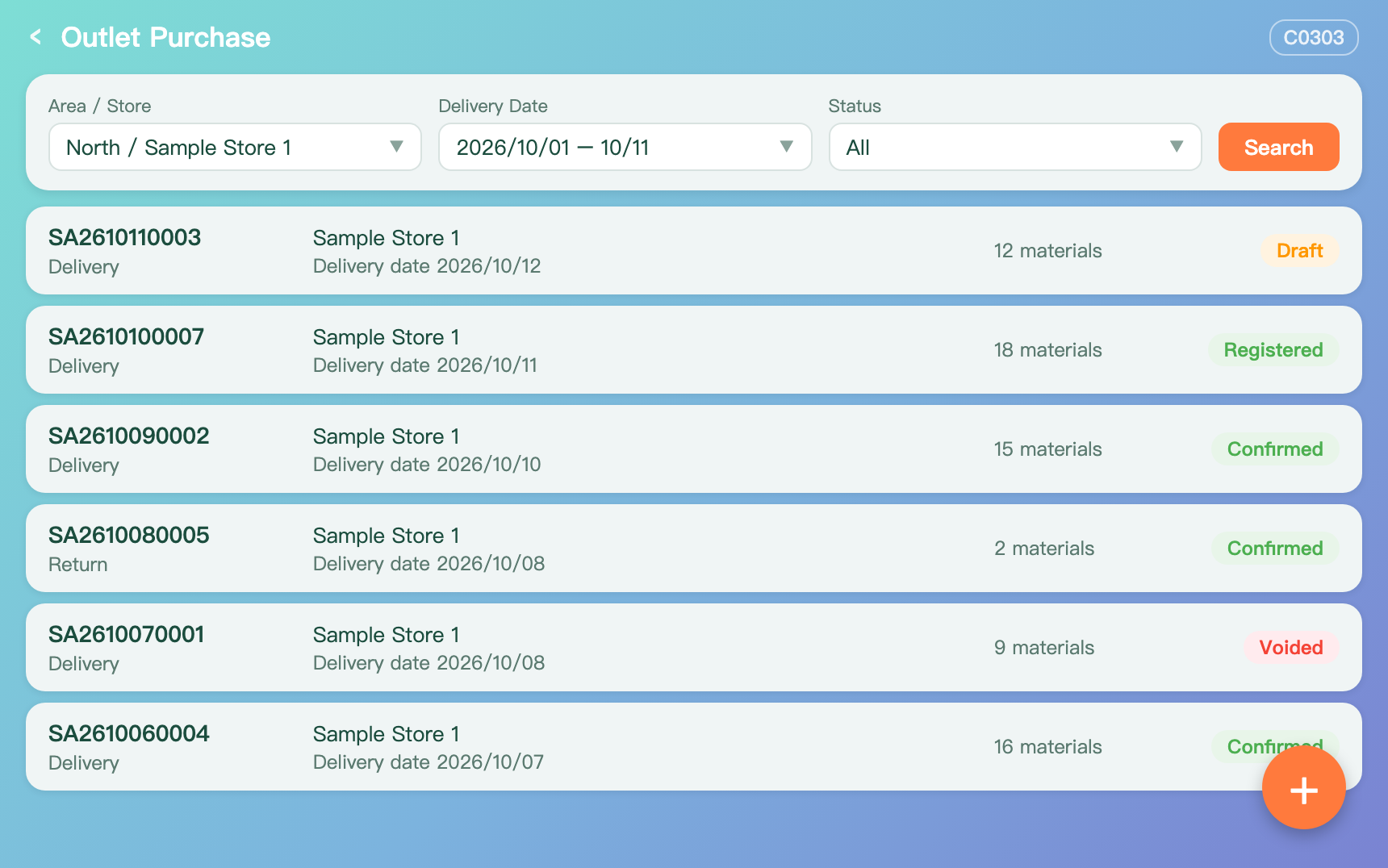
Stockify Outlet Purchase screen (mock-up)

Why it matters

Three everyday stock problems in stores

Ordering by gut feel

Order too much and stock expires. Order too little and the store runs short.

Receipts that do not match

Ordered and received quantities differ, and the gap is hard to trace afterwards.

Stock nobody else can see

Stocktake results stay on paper, so head office cannot see each store's position.

What Stockify doesIt puts all three into one app that shares the same data as the back office.

At a glance

Stockify at a glance

3modulesPurchasing, inventory, reports
12functionsFrom ordering to stocktakes and reports
3interface languagesEnglish, Traditional and Simplified Chinese
AndroidAppUsed with the cloud back office

How it works

Materials, from warehouse to store

Store orders

The store registers a purchase order to the central warehouse in the app.

Warehouse ships

The warehouse confirms the sales order in the back office.

Store receives

The store enters the quantity actually received in the app and confirms.

Stock updates

Stock updates at once, and any difference is kept on record.

Stocktake lockConfirmations are locked on a stocktake day and open again the day after, so counted figures stay unchanged.

Features

What a store uses every day

Purchasing

Outlet Purchase
Order from or return to the central warehouse. Save a draft first if needed.
Outlet Receive
Check ordered against received quantities. Confirming updates stock.
Material Transfer
Move materials between stores in the same area. The receiving store confirms.
Material Waste
Record damaged, expired or lost materials. Stock is adjusted to match.
Outlet Purchase screen
Outlet Purchase (mock-up)

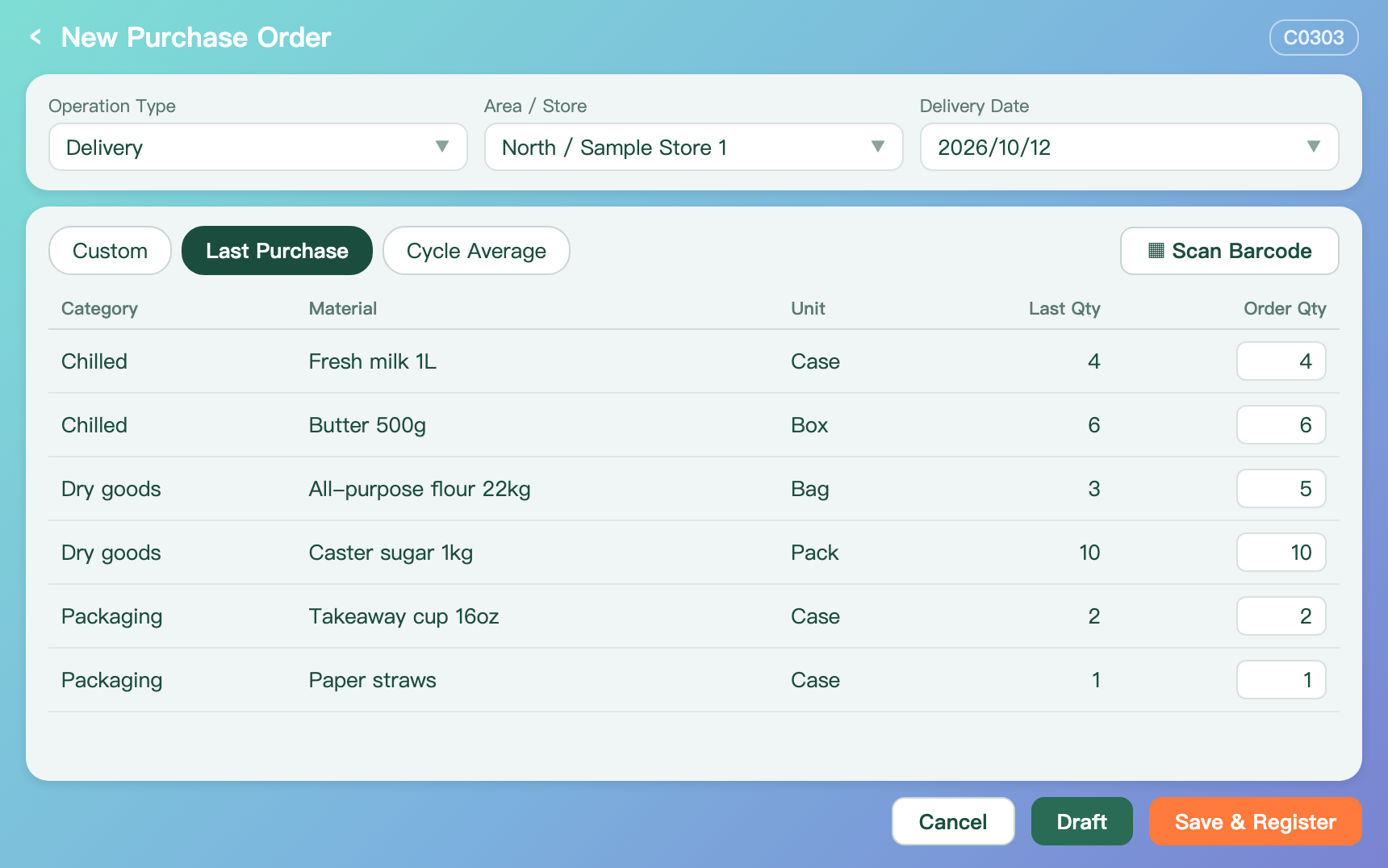
Three ways to build an order quickly

Custom
Pick the category and materials by hand.
Last Purchase
Import the previous order, then adjust the quantities.
Cycle Average
Bring in average quantities for a date range.
Barcode scan and drafts
Scan a barcode with the camera to add a material. Save a draft and register it later.
New purchase order screen
New purchase order (mock-up)

Inventory

Stock Record
Count actual stock against the system record, find the differences and adjust.
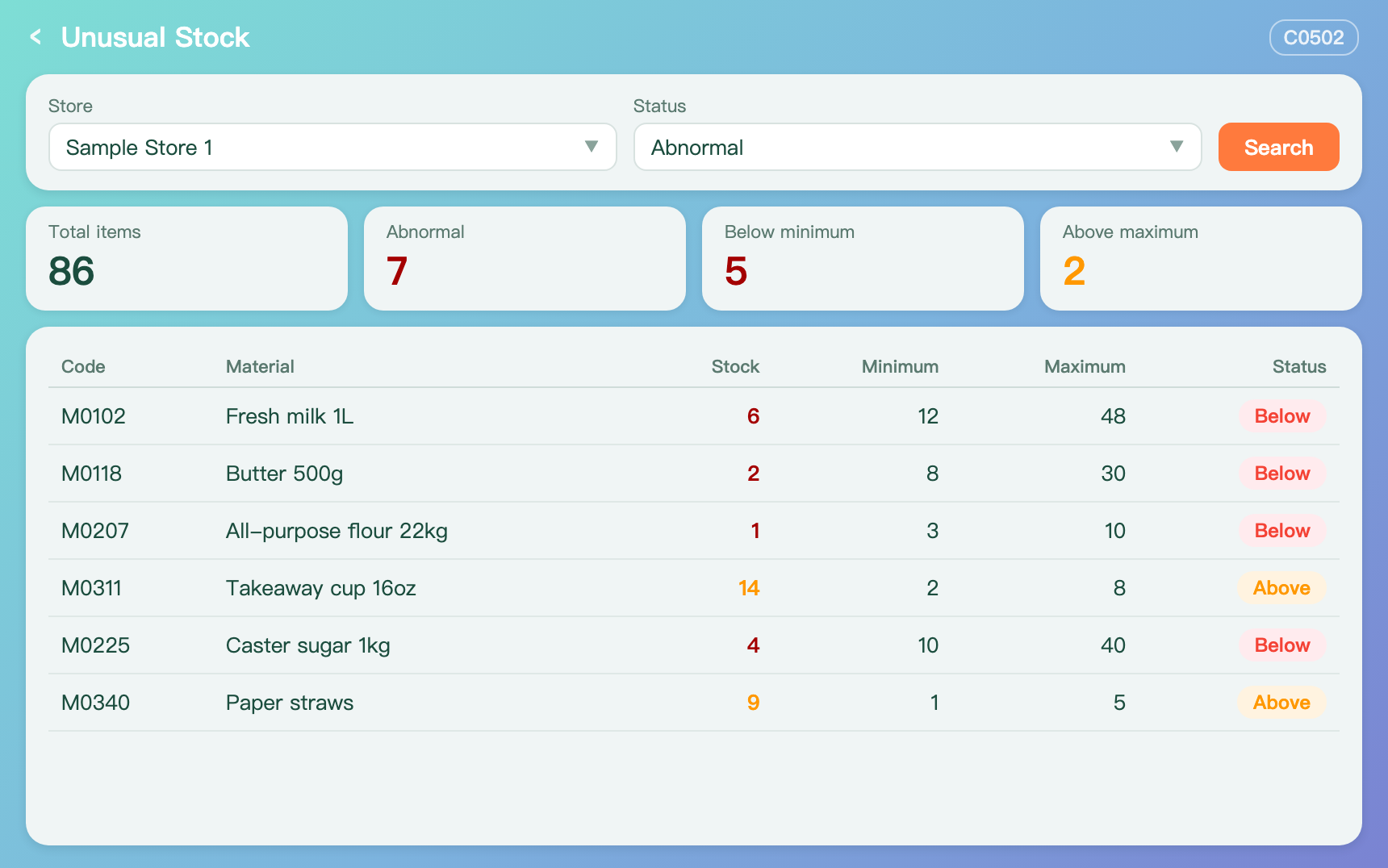
Unusual Stock
Lists materials below the minimum or above the maximum, with totals for each.
Safe Stock Setting
Set thresholds per store and per material. Changes save automatically.
Unusual Stock screen
Unusual Stock (mock-up)

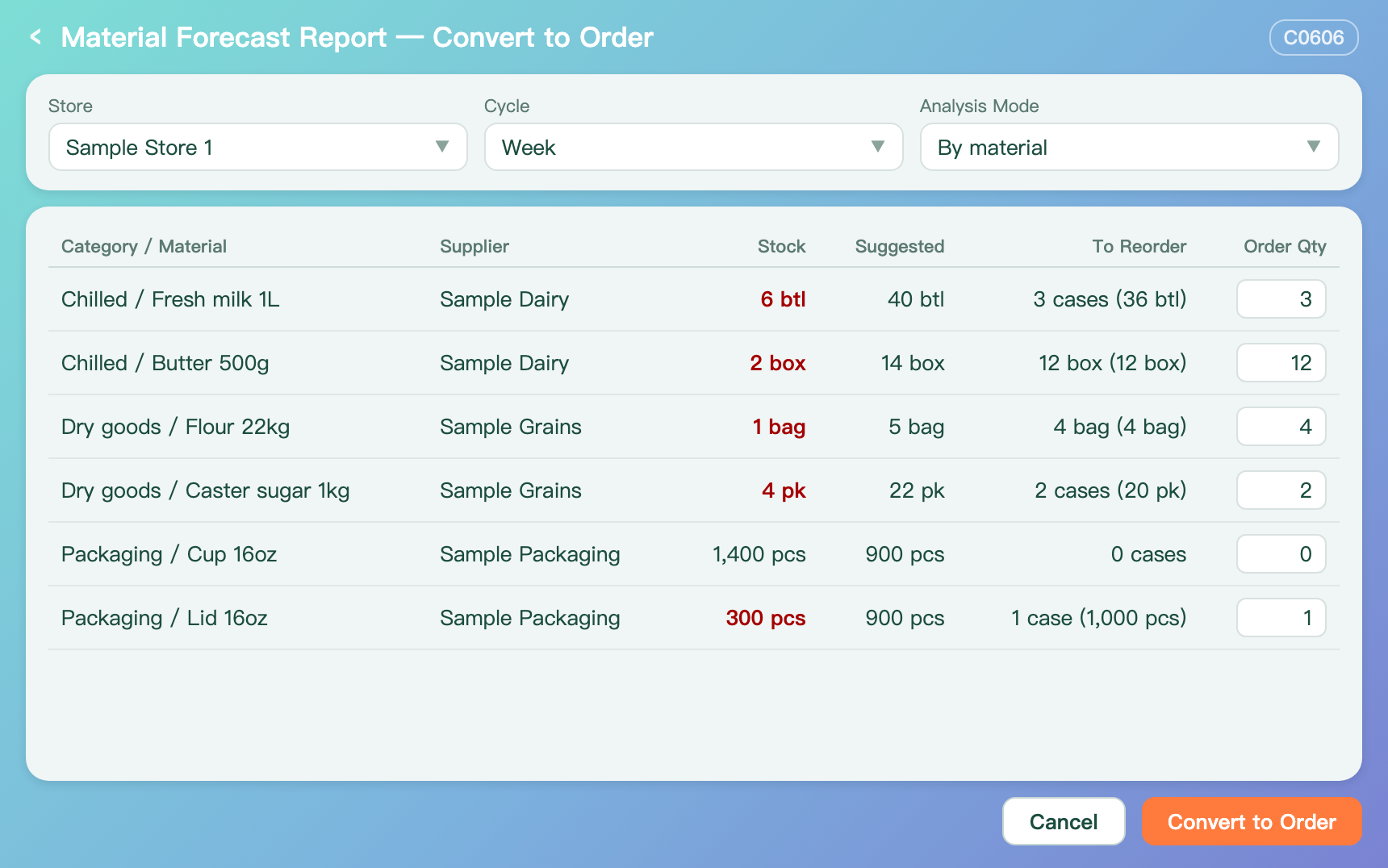
Material forecast from sales history

Suggested quantity
Calculated from sales history, by week or by month.
Checked against stock
Materials below the suggested quantity are shown in red.
Converted to order units
The shortfall becomes cases or packs, always rounded up.
The store still decides
Every order quantity can be edited before converting.
Convert to order screen
Convert to order (mock-up)

Reports

Four reports, right in the app

ReportWhat it shows
Total Inventory ReportOpening, purchased, sold and closing quantity and value, by store and month
Warehouse Supply SummaryQuantity and value supplied to each store, with returns deducted
Inventory ReportStock on a chosen date, compared with safe stock
Material Forecast ReportMaterial demand forecast from sales history
Traceable to the orderThe supply summary drills down to each purchase order, showing ordered and received quantities.

Platform

Built for multi-country chains

Country, area, store

Documents and reports filter down through three levels.

Updates without reinstalling

A built-in version check. Small fixes arrive as patches.

Encrypted sign-in

Sign-in credentials are stored encrypted on the device.

Want to see Stockify running?

Book a demo