Next-gen KDS

A kitchen display system any POS can connect to

Kitchen, expo and Food Ready screens, plus a KDS Hub with its own data and API.

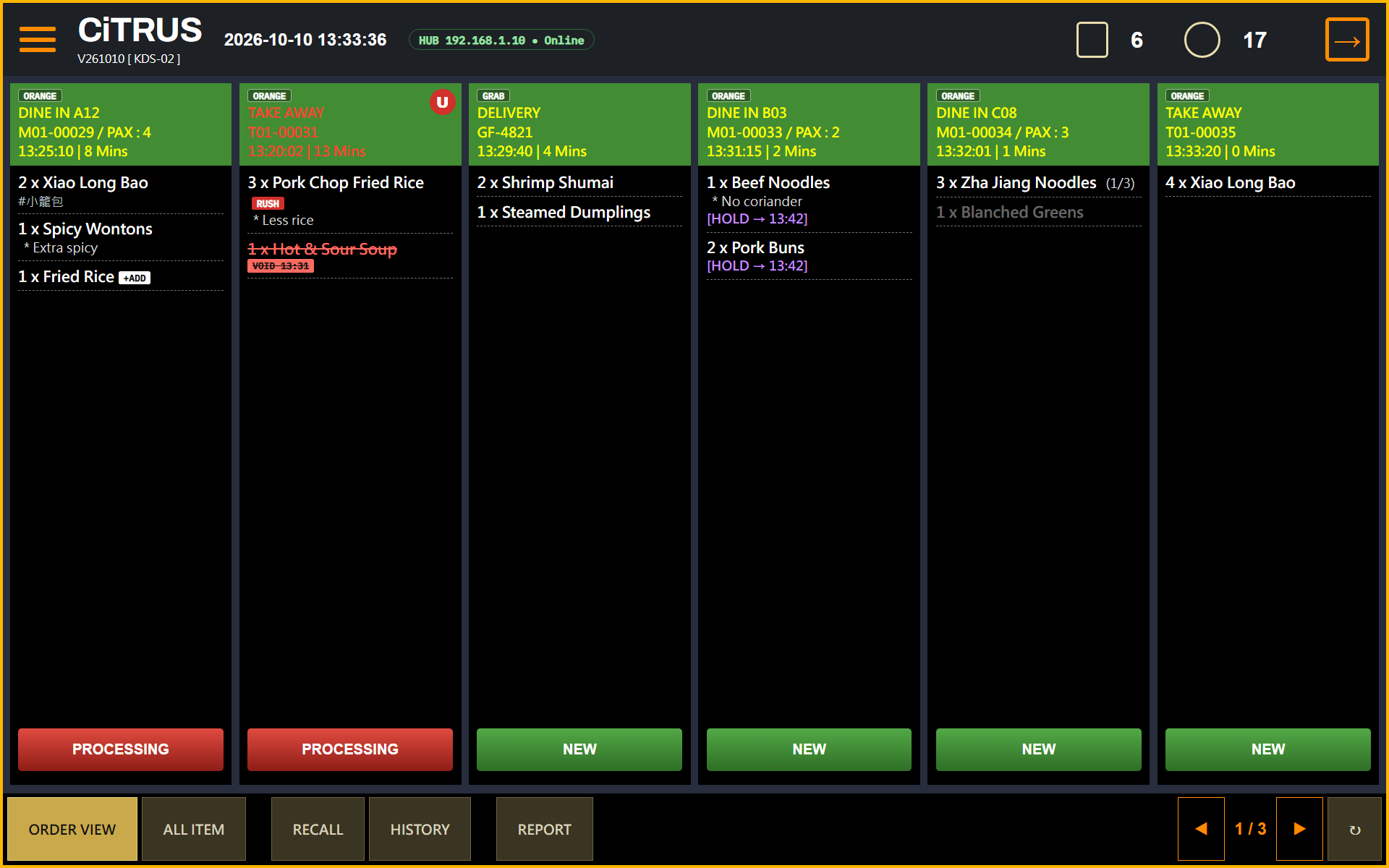
KDS kitchen screen (simulated): one card per order

What it is

One core, three screens

Kitchen

Each station sees only its own items and bumps them when they are done.

Expo

Shows how far each station has got on every order. Serve when the order is complete.

Food Ready

The customer display: orders being prepared, and orders ready for pickup.

The core: KDS HubEvery screen connects to the KDS Hub in the store. It receives orders, routes items to stations, records each status change and reports back to the POS.

How it works

An order, from send to pickup

Send

The POS sends the order. The Hub routes each item to its station.

Prepare

The kitchen bumps items on its screen, by portion or by whole order.

Serve

Expo serves the order. Its number shows on the Food Ready screen.

Collect

After the guest takes the food, expo confirms it on the pickup list.

Screens

What the kitchen uses every day

Kitchen screen: reading an order from one card

Header
Source, service type and table, order number and guests, minutes waited.
+ADD / RUSH
+ADD marks added items. RUSH moves the order to the front.
VOID / HOLD
Voided items stay until tapped. Held items release automatically at their time.
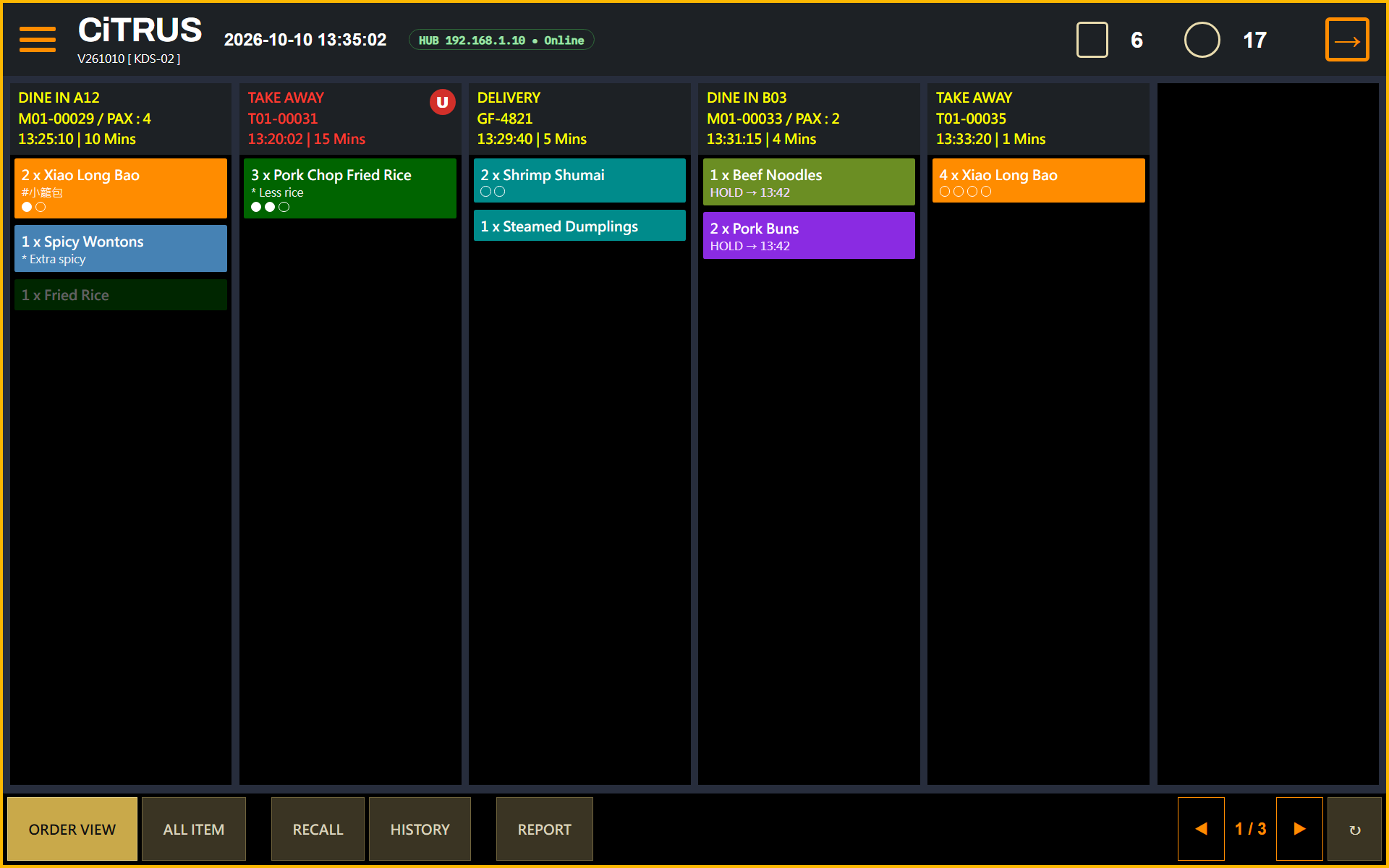
Kitchen screen
Kitchen screen (simulated)

Bumping and recall

Item keys
Tap the key of the item you finished, portion by portion if needed.
Whole order at once
Tap the status key NEW; two-step bumping is optional.
RECALL
Brings back an order or item bumped by mistake.
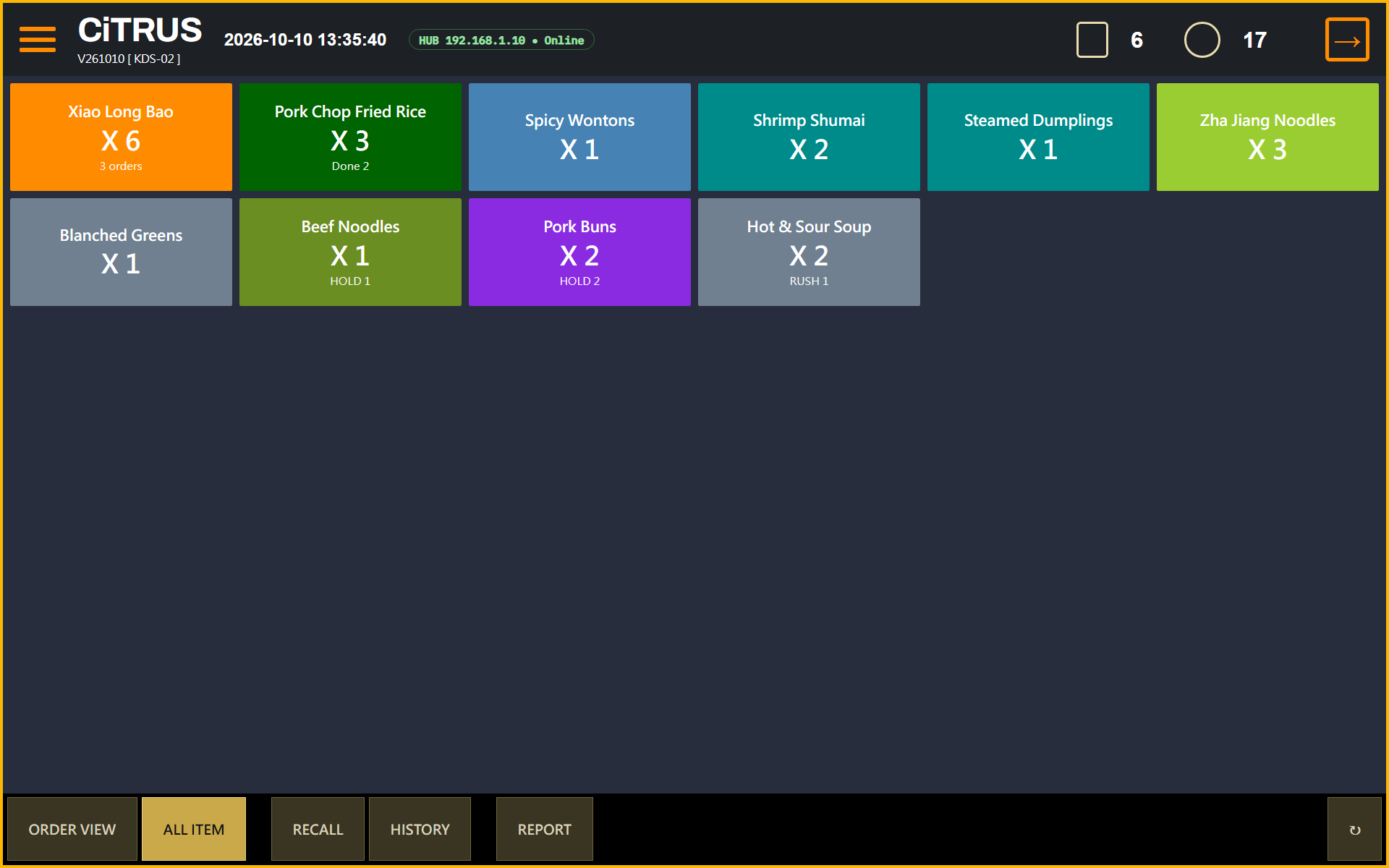
Item-key screen
Item-key screen (simulated)

ALL ITEM and the report

Totals across orders
The total still to make for each item across all orders, for batch preparation.
REPORT
Portions made per item and average time, compared with the target time (KPI).
ALL ITEM
ALL ITEM (simulated)

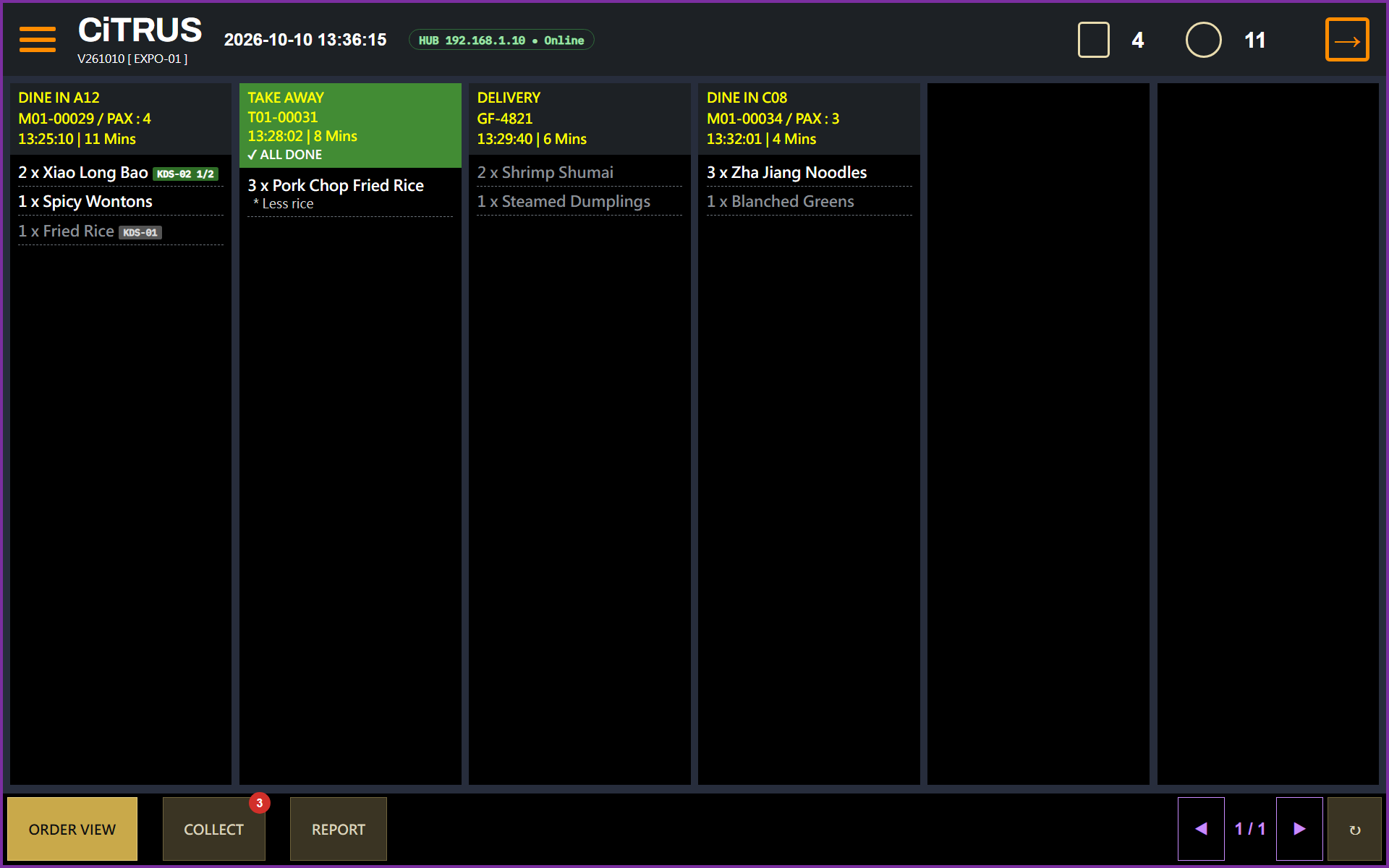
Expo: serve when the order is complete

White and grey
White items are done. Grey items are still being made.
Serve an order or one item
Tap the header to serve the order, or a white item to serve just that one.
COLLECT
After pickup, tap COLLECT and confirm.
Expo screen
Expo screen (simulated)

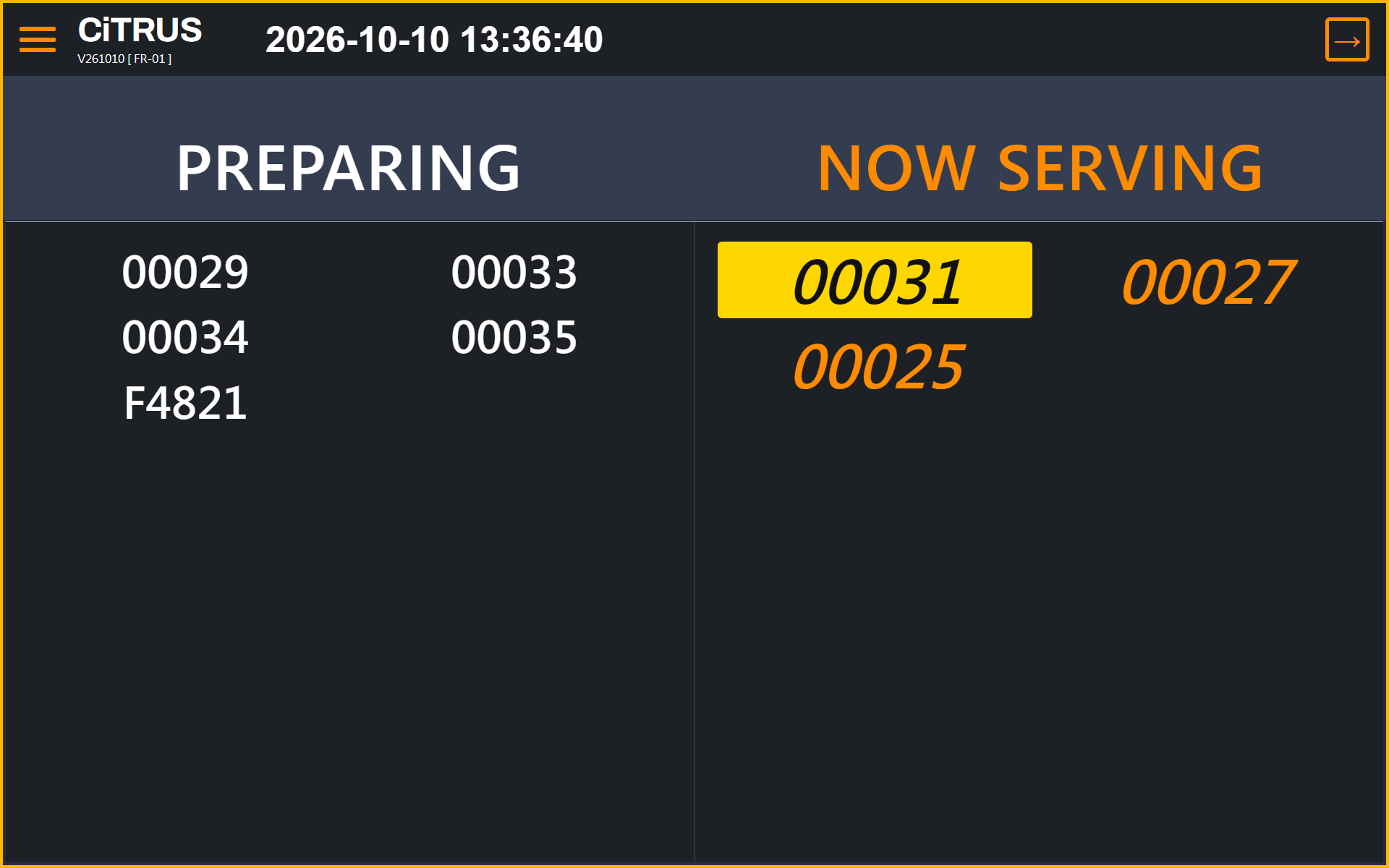
Food Ready: the display your guests watch

Two columns
PREPARING on the left, NOW SERVING on the right.
Call cue
A served number moves right and flashes for about 10 seconds, with an optional chime.
Food Ready screen
Food Ready screen (simulated)

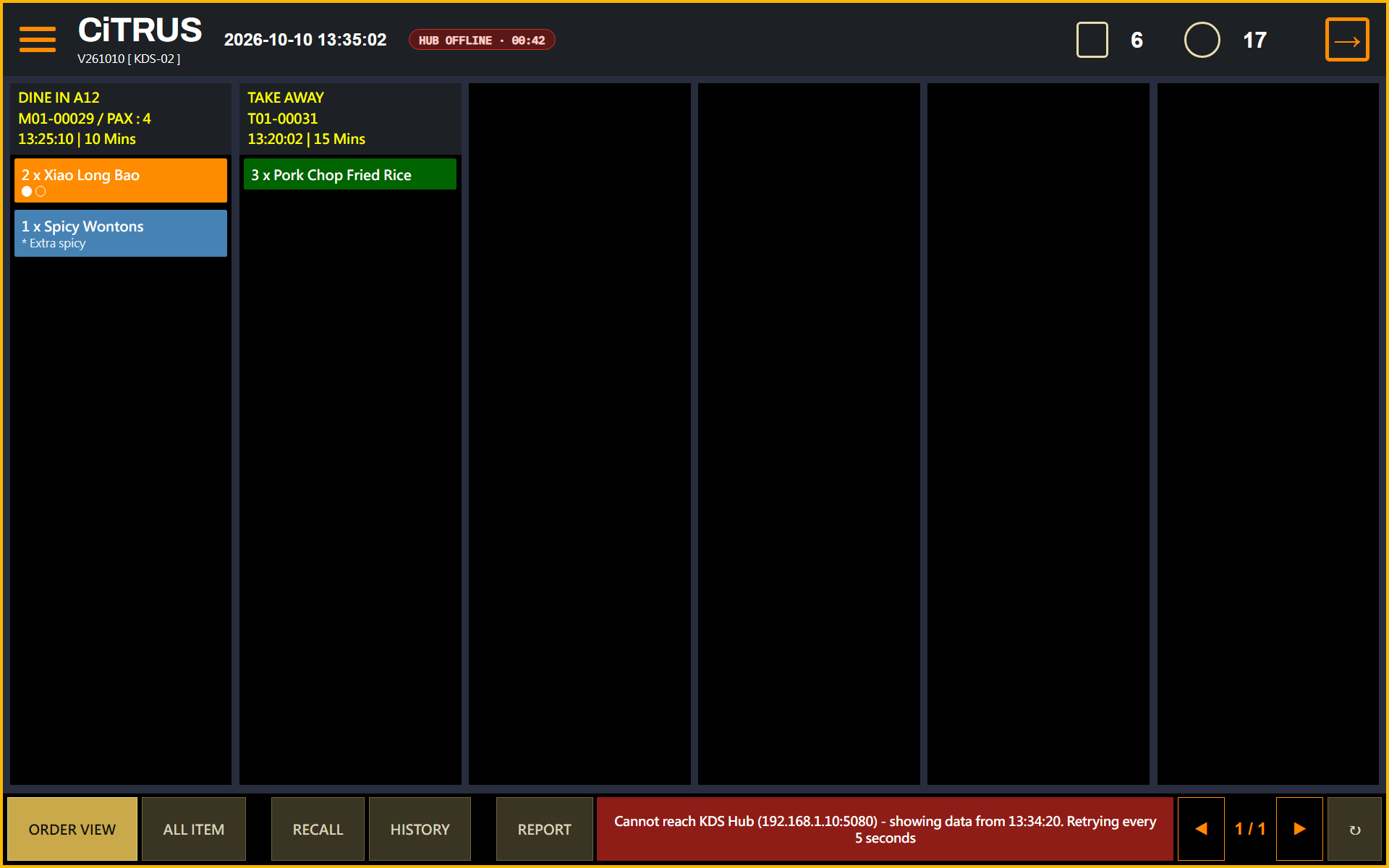
The kitchen keeps going when the link drops

The screen stays
It keeps the data from before the disconnection and shows how long it has been offline.
Automatic retry
It retries every 5 seconds, refreshes once reconnected, and catches up on missed orders.
Offline screen
Offline (simulated)

POS integration

Other POS brands connect through the API

What the POS can doDetail
Send an orderItems, add-ons, notes, service type, table
Add itemsAdd to an existing order
ChangeQuantity or notes
VoidWhole order or selected items
RushMoves the order to the front
Hold and releaseStart after a set time
QueryCurrent status of an order
Status reportingStarted, done, ready and collected are reported by webhook. If the POS resends after a timeout, the order is created only once.

Rollout

Upgrading a store that runs Citrus POS

Install

The Hub goes on the store's existing server. Workstations install beside the old KDS.

One day in parallel

The new system displays only and writes nothing. Both sides are compared after closing.

Station by station

Switch one station at a time, and switch back at any point.

No POS changesCitrus POS connects through an adapter. The POS sees the same status changes as before.

Want to see the KDS running?

Book a demo